|
1. Using of Golden Inventory system
1.Introduction
1.1.What is Golden Inventory System?
1.2. How to begin working with this inventory system?
1.3. System Requirements to this inventory software
1.4. Installation Golden inventory
2.Main Menu
2.1. New inventory Database
2.2. Open the inventory Database
2.3. Backup the inventory database
2.4. Restore the inventory database
2.5. Company options
2.6. Form's font for the inventory system
2.7. Main Form Options
2.8. Point-Of-Sale options
2.9. Send
2.10. Security functions for the inventory system
2.11. Import data from Silver,Executive, Bronze inventory systems
3. Company&Locations
3.1. Set up Your Company
3.2. Company Address
3.3. Email address
3.4. The other settings
3.5. Storage locations, warehouses
4. Vendors
4.1.The vendor List at the inventory system
4.2.Add a new Vendor to Golden Inventory
5. Purchase Orders
5.1. Purchase Order List of the inventory system
5.2.Add a new Purchase Order to the inventory database
5.3. Edit a Purchase Order at Golden Inventory
6. Receiving
6.1.The Item receipt List at the inventory system
6.2.Add a new Item receipt to the inventory database
6.3. Edit an Item receipt at Golden Inventory
7. Customers
7.1. The customer List at the inventory system
7.2. Add a new Customer to the inventory database
8. Sales Orders, Estimates
8.1.The Sales Order List at the inventory system
8.2.Add a new Sales Order List to the inventory database
8.3. Edit Sales Order List at the inventory system
8.4. Estimate,quote
9. Invoices
9.1.The Invoice List at the inventory system
9.2.Add a new Invoice to the inventory database
9.3. Edit an Invoice at the inventory system
10. Sales Receipts
10.1.The Sales Receipt List at Golden Inventory
10.2.Add a new Sales Receipt to the inventory database
11. Point of Sale
11.1.Options of the Point of Sale panel
11.2.The Point of Sale Panel
12. Work Orders
12.1.Add a new Work Order to the inventory database
13. Items
13.1.The Item List at the inventory system
13.2.Add a new Item to the inventory database
14. Transfer Orders
14.1.Add a new Transfer Order in the inventory system
15. Payments
15.1.The List of payments at Golden Inventory
15.2. Add a new payment to the inventory system
15.3. Edit a payment at Golden Inventory
16. RMA tickets
16.1. The RMA list at Golden Inventory System
16.2. Add a new RMA ticket to the inventory system
17. Adjust inventory
17.1. The Adjustment list at Golden Inventory
17.2. New Adjustment
18. Currencies
18.1.The Currency list at the inventory system
18.2. New Currency
19. Overview at Golden Inventory System
19.1. Inventory to Reorder
19.2. Bills to Pay
19.3. Unclosed Sales Orders
19.4. Unpaid Invoices
20. Export and import
20.1.Export and import CSV files at Golden Inventory System
20.2.Export and import Excel files at the inventory system
20.3.Golden Inventory system and QuickBooks
20.4.Using XML files in Golden Inventory
|
 |
The List of payments at Golden InventoryThe Payments List Form allows to manage creating, editing, deleting, sorting, filtering payment receipts . You can get to the Payments List by selecting the Lists Menu from the Main Form or clicking on the button "Payments" or "Payments to Vendor".
Functions:
New
If you want to add a new payment receipt, click on the button "New"(or Payment Menu item "New") and fill the appeared Payment Receipt form.
Edit
If you want to edit a payment features, click on the button "Edit"(or Payment Menu item "Edit" or double click on the Payment row) and edit fields in the appeared Payment Receipt form.
Delete
If you want to delete a payment receipt, click on the button "Delete"(or Payment Menu item "Delete") and confirm your wish to delete. You can't delete the Payment.
Find
If you want to find a payment receipt by number, vendor ,customer, total, click on the button "Find"(or Payment Menu item "Find") and enter what you want to find in appeared dialog box.
This function searches for concurrence to any part of all list fields.
Print List
To print the Payments List click on the button "Print List"(or View Menu item "Print List").
Filter
If you want to show on a screen only part of the Payments List list click on the button "Filter"(or View Menu item "Filter") and enter what you want to select in the appeared dialog box.
Pay attention after filtration on the button "Filter" to be highlighted by green light.
Select for print and Print selected
You can select in the list any number of the documents, pressing the button "Select for print" or keeping the key "Ctrl" with clicking mouse on the extreme left column of the list. Then press the button "Print selected" and you will see the preview window. For printing press button "Print".
Balance
It is possible to see the balance, number of the last purchase order and your payment of current vendor or customer having clicked on the button "Balance" (or Payment Menu item "Vendor or Customer Balance").
Help
Call of Help.
You can sort the list for any field having clicked the mouse on title of field or use menu item "Sorting".
Payments List form may be called from Invoice,Order, Receiver and POrder forms form having clicked on the buttons "Paid". You can select the Payment by a double click of the left mouse button on the Payment row or click on the button "Edit" . If you want to add new payment under the current document click the button "New". 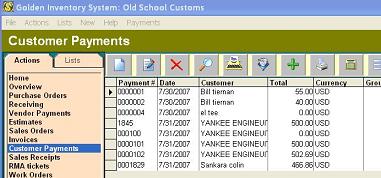
|
 |